Field-appropriate copy
Suggest wording for names, short descriptions, product descriptions and the other supported fields in the same form.
Turn reliable product information into introductory copy and SEO suggestions alongside the same ASMA Shop form.
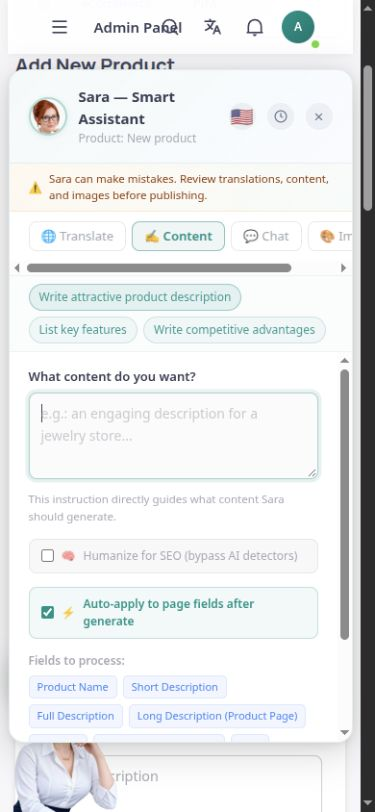
The English product form and Sara content panel. The target language and output can be reviewed before applying changes.
In relevant forms, Sara’s content assistant provides administrators with Content, Translation and Chat tabs. By choosing the content language and defining the product context, you can prepare suggested text for selected fields and review it before applying it to the form.
The content flow supports names and short descriptions through to product descriptions, SEO titles and SEO descriptions. Image tools or photo-based autofill appear only in forms where those capabilities have been enabled. Text quality depends on reliable input, and the administrator retains the final decision on accuracy, translation and publication.
Suggest wording for names, short descriptions, product descriptions and the other supported fields in the same form.
Help write search titles and descriptions from product information, without promising a specific search engine ranking.
Select the target language and keep the assistant aligned with the page’s content language tab.
Prepare suggested translations within the form. Translated text needs review before publication.
When the tool and its service are enabled, an image tab or photo-based autofill can be used.
The assistant’s output is available for review. Generating text or an image does not itself publish the product.
Specify the product, target language, relevant field and reliable details in the form and assistant.
Make a clear request in the form’s Content tab, then check the result for accuracy and suitability for the brand.
Apply approved text or images to the appropriate field, then save or publish the product through the normal workflow.
The assistant works in the context of the same product, keeping suggested copy connected to product entry.
Generation, translation and images depend on the relevant service being ready and on the account’s quotas and permissions.
Text editing and publication have defined steps and permissions. The assistant’s suggestions should be reviewed before public display.
Answers to practical questions about Content creation.
An accurate introduction needs reliable product specifications and context. Generated text must not stand in for genuine information, such as unverified technical specifications or authenticity claims.
Producing an output and publishing it are different. The assistant also displays a reminder to review content, translations and images before publication.
No. The image tab and photo autofill are enabled selectively in authorised forms and require the relevant service.